A laptop that suddenly refuses to turn on can be caused by anything from a simple power connection problem to a more serious internal hardware fault. You may press the power button and get no lights, no fan activity, no display, or no response at all. In other cases, the charging indicator may appear but the laptop still does not start, or the laptop may power on while the screen remains completely black. Possible causes include the charger, power socket, battery, charging port, RAM, display, motherboard, or other internal components.
Before assuming that the laptop has suffered a major failure, there are several basic checks you can safely perform without opening the device. Doorstep Hub brings you this practical troubleshooting guide to help you understand why your laptop may not be turning on, which simple checks you can perform at home, and when professional laptop repair assistance may be required.
Why Is My Laptop Not Turning On?
A laptop requires a stable power supply and several hardware components to work correctly before it can start normally.
Common causes of a laptop not turning on include:
- Power socket problem
- Faulty or damaged charger
- Loose charging connection
- Battery problem
- Charging-port fault
- Connected accessory causing a startup issue
- RAM problem
- Display or screen problem
- Motherboard fault
- Internal power-circuit problem
Start with basic external checks before assuming that the motherboard or another major component has failed.
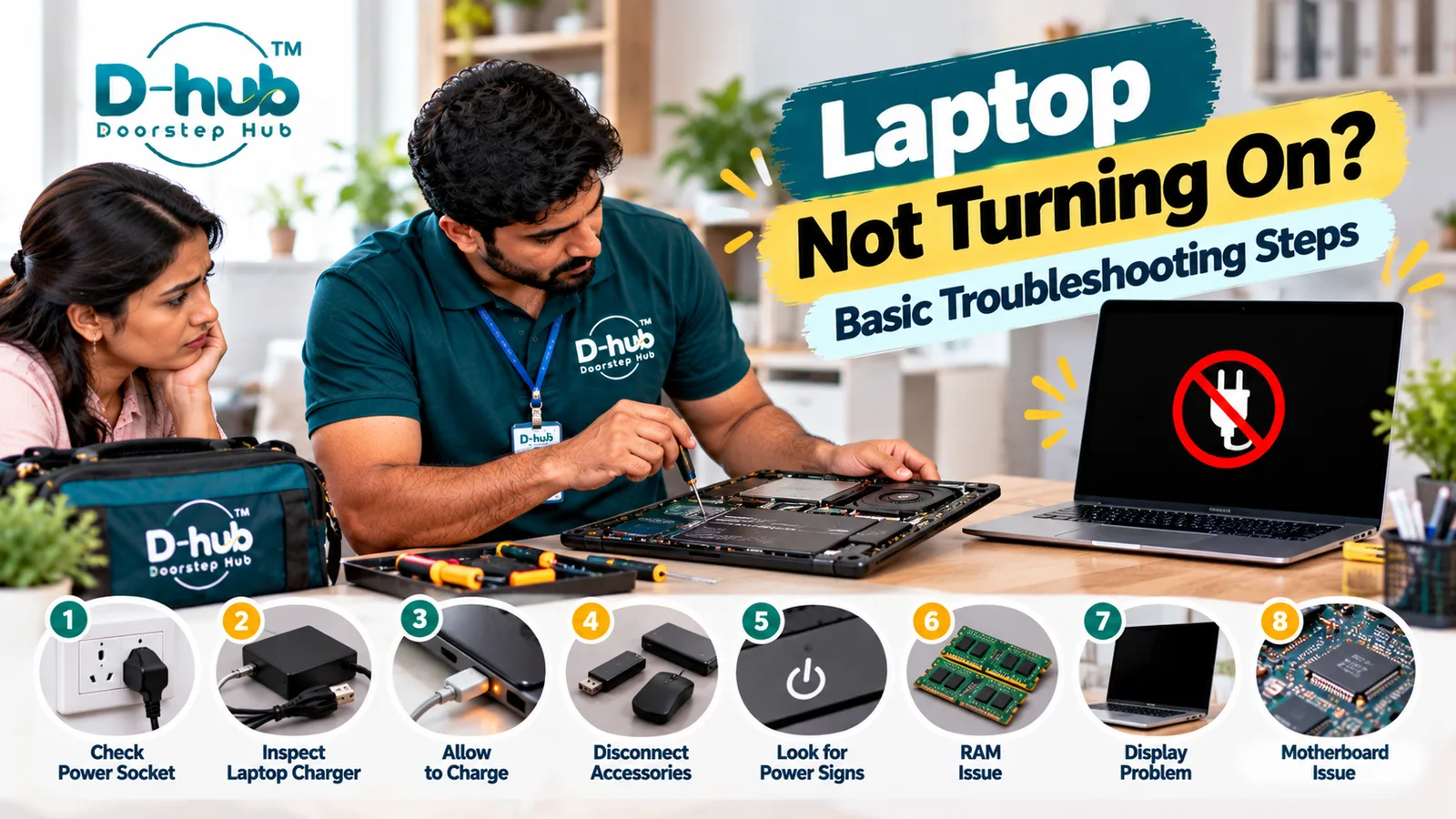
1. Check the Power Socket
First, confirm that the electrical socket being used for the laptop charger is functioning correctly.
If possible, test the socket safely with another suitable device or try another known-working power outlet.
Also check whether:
- The charger is connected securely.
- The wall switch is turned on.
- The power strip, if used, is functioning normally.
- There is visible damage around the socket or plug.
Do not use a damaged electrical socket or unsafe extension arrangement.
2. Inspect the Laptop Charger
A faulty charger can prevent the laptop from receiving the power it needs to start or charge the battery.
Check the charger for obvious signs such as:
- Damaged cable
- Bent connector
- Loose connection
- Frayed insulation
- Unusual heat
- Burning smell
- Physical damage
Use only a compatible charger that meets the laptop manufacturer's specifications.
If you suspect that the charger is damaged, stop using it until it has been appropriately checked or replaced.
3. Allow the Laptop to Charge
A deeply discharged battery may not provide an immediate response when you press the power button.
Connect the appropriate charger and allow the laptop to charge for a reasonable period according to the manufacturer's recommendations.
Look for signs such as:
- Charging indicator light
- Power indicator
- Screen response
- Fan activity
- Other normal charging behavior
If there is still no response, further troubleshooting may be required.
4. Disconnect External Accessories
Connected accessories can occasionally interfere with startup or make troubleshooting more difficult.
Disconnect non-essential external devices such as:
- USB drives
- External hard drives
- Printers
- USB hubs
- External keyboard or mouse
- HDMI devices
- Memory-card readers
- Other peripherals
After disconnecting unnecessary accessories, try starting the laptop normally.
5. Look for Signs of Power
Pay attention to what happens when you press the power button.
Check for:
- Charging light
- Power indicator
- Keyboard backlight
- Fan movement
- Startup sound
- Screen illumination
- Manufacturer logo
These signs can help distinguish between a complete power failure and a display or startup-related problem.
For example, if fans and indicator lights operate but the screen remains black, the laptop may actually be receiving power.
6. Could the Battery Be the Problem?
Yes. A worn, deeply discharged, damaged, or faulty battery can contribute to laptop startup problems.
Possible symptoms may include:
- Laptop works only when connected to the charger
- Battery does not charge
- Charging percentage does not increase
- Laptop shuts down unexpectedly
- No response when operating from battery power
Battery troubleshooting procedures vary between laptop models, especially because many modern laptops use internally installed batteries.
Avoid opening the laptop solely to disconnect an internal battery unless you are appropriately trained.
7. Can a Charging-Port Problem Stop the Laptop From Turning On?
Yes. A damaged or loose charging port can prevent power from reaching the laptop correctly.
Possible signs include:
- Charger feels loose when connected
- Charging starts and stops when the connector moves
- Charging indicator does not appear
- Visible damage around the charging port
- Laptop does not charge despite using a suitable charger
Do not repeatedly move or force the charging connector, as this may cause additional damage.
8. Is the Laptop On but the Screen Black?
Sometimes a laptop appears not to turn on when the actual problem is with the display.
If you notice:
- Fan activity
- Keyboard lights
- Power indicator
- Startup sounds
- Other signs of operation
but the screen remains completely dark, the issue may involve the display panel, display cable, graphics-related hardware, motherboard, or another display component.
Professional diagnosis may be necessary to identify the actual cause.
9. Can RAM or Motherboard Problems Prevent Startup?
Yes. RAM, motherboard, and internal power-related faults can prevent a laptop from completing the startup process.
Possible symptoms can include:
- Power light but no startup
- Black screen
- Repeated restarting
- Beeping on supported models
- Laptop switching off immediately
- No response despite a working power source
However, these symptoms do not automatically confirm motherboard failure.
A technician should test the relevant components before recommending major repairs or replacements.
10. Stop Trying to Start the Laptop if You Notice Warning Signs
Do not repeatedly press the power button if the laptop shows potentially serious electrical or thermal symptoms.
Stop using the device if you notice:
- Burning smell
- Smoke
- Excessive heat
- Sparking
- Swollen battery
- Melted or damaged charging connector
- Unusual electrical sounds
- Liquid damage
Disconnect external power when it is safe to do so and arrange professional inspection.
Avoid Unnecessary DIY Internal Repairs
Basic troubleshooting should generally remain limited to safe external checks unless you have appropriate technical knowledge.
Avoid unnecessarily opening the laptop to inspect:
- Motherboard
- Internal battery
- Charging circuitry
- RAM slots
- Display connections
- Internal power components
Incorrect handling can damage delicate connectors and electronic components.
Professional diagnosis can help identify whether the problem is related to the charger, battery, charging port, RAM, display, motherboard, or another component.
When Should You Call a Laptop Technician?
Consider professional laptop inspection when:
- The laptop shows no response at all
- A compatible working charger does not help
- The laptop does not charge
- The charging port feels loose or damaged
- Power lights appear but the screen remains black
- The laptop repeatedly switches on and off
- The device becomes unusually hot
- There is a burning smell
- Liquid damage has occurred
- Basic external troubleshooting does not solve the problem
A trained technician can inspect the charger, battery, charging port, RAM, display system, motherboard, power circuitry, and other relevant components to determine the actual cause.
Professional Laptop Repair Support with Doorstep Hub
If your laptop is not turning on after completing the basic troubleshooting checks, Doorstep Hub can help you connect with service professionals for laptop inspection, troubleshooting, servicing, and repair assistance.
Whether the problem involves a faulty charger, battery issue, charging-port problem, RAM fault, black screen, motherboard problem, internal power issue, or another hardware fault, professional diagnosis can help identify the appropriate repair before unnecessary components are replaced.
Need Laptop Repair Support?
📞 Helpline: 8886688666
🌐 Website: doorstephub.com
📲 Doorstep Hub App: Open Doorstep Hub App
Start by checking the power socket and charger, disconnecting external accessories, allowing the laptop to charge, and looking for signs of power. If the laptop remains completely unresponsive—or shows burning, overheating, battery swelling, or other electrical warning signs—stop using it and arrange professional inspection.
Frequently Asked Questions
Common troubleshooting questions answered by our specialists
Was this article helpful?
Your feedback helps us improve our repair guides and service tips.